

Appearance
INFO
Please note that the options available to use may be dependent on the licence tier that the sender is using, refer to our pricing plans for more information.
Requesting files with Hexiosec Transfer
As well as using Hexiosec Transfer to securely send files it can also be used to securely request files and, like sharing, the recipient of the request does not need a Hexiosec Transfer account.
The requester will generate an invitation request, which creates a unique link to be shared with the person who will be sending the files. When they receive the invitation link and use it to share the files, the files are encrypted in their browser before being uploaded, using a shared key that is known only to the requester and the sender. Requesting a file uses the same end to end encryption as sending a file
When the invitation link is used to send the files, the files will be available in the requesters Hexiosec Transfer inbox and are decrypted using their key.
Please ensure that the same browser that created the request link is used to receive the files.
As an example use case, we will quite often send contract PDFs as a share files link and include a second request files link for the signed copy to be returned, to discourage the use of email for sending sensitive information.
Set up the request
A short summary should be used to help the requester to find the request after it is sent, the recipient of the request will also see the summary entered here.


The request is valid until it has been used to upload a file, after which the file will remain available for you to download for up to 30 days. Once you have downloaded any received files you can either Archive it, or Delete it entirely.
Submission deadline
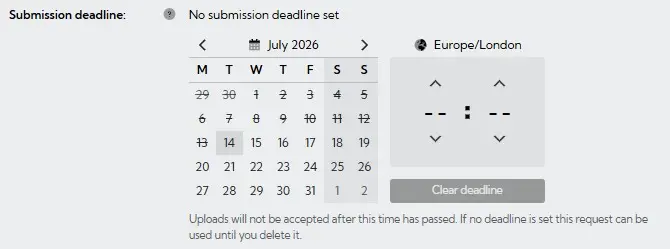
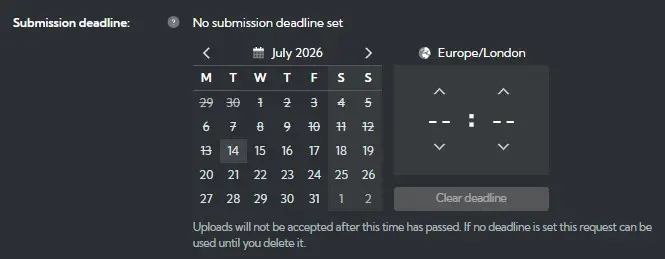
The submission deadline setting allows you to specify a time limit after which uploads will not be accepted. This section is optional and if not used, the sharing request will remain open for submissions until you choose to archive it.
The submission deadline can be added, updated, or removed after the sharing request has been created and we would recommend informing the recipients if the deadline is changed.
Backup your encryption keys
Hexiosec Transfer relies on the storage inside your browser to store the encryption keys needed to perform end-to-end encrypted transfers, including for sharing requests. Backing up the encryption keys will allow you to restore access to files uploaded to this link if your browser storage is cleared. You can also use this to access files on another device, however it will not allow anyone else access to your files. This does not back up files shared via this link.
You can opt to download the encryption key backup file during the request set up, or afterwards on the final page.
What this does:
- Downloads an encrypted copy of the data your browser would store for this request for safe keeping
- Allows you to restore access by loading the backup file when prompted from a browser that has lost its local storage, or a different browser entirely
What this does not do:
- Does not allow anyone else to access the files uploaded to the request
- Does not backup any files added to the request
- Does not allow us to access your files
If your browser storage is emptied without having saved this backup file, then we cannot restore access to the request on your behalf and you will need to set up a new request.
Share by link, code, or QR code
The final page will show the link which can be copied and sent to the recipient. If there are issues sending a link, an alphanumeric code/QR code can also be copied and used instead; sometimes email systems can alter links and a code provides an alternative option.
Clicking on the 'share via email' button will launch the requesters default email application and create a new email message with the download information. You can also save your encryption keys from this page.
TIP
The "Share via Email" button is implemented as a mailto: link with pre-filled subject and body, intended to trigger the default mail application for the browser/device. If this isn't working, check that the browser/device is set to the mail application you use.
The recipient will not need a Transfer account to use the link and can simply upload the file via a browser window. If multiple files are uploaded by the recipient, they are sent to the sender as a zip file.
Receiving the file
The requester will receive an email informing them when the requested file has been uploaded. The email will contain a clickable link that allows them to download the files.
TIP
Please note that files are end-to-end encrypted and therefore can only be retrieved on the device used to create the invitation.
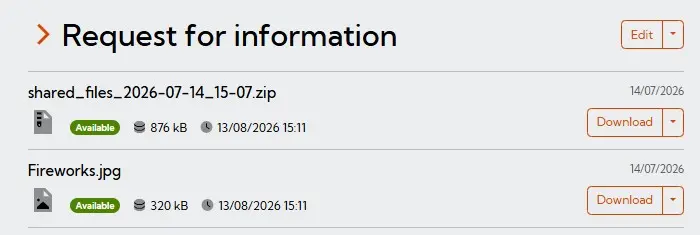
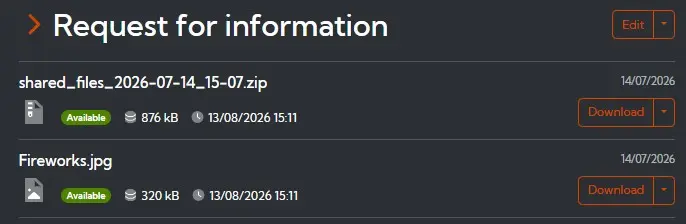
The transfer history will show the invitation and when the recipient has completed the upload. If the person uploading the file is not using an authenticated browser (for example they are using a browser in incognito mode), then the person uploading the file will not be shown.